For instructions on how to create an instant online meeting, please read here.
To schedule an online meeting, use the New>Event option or go to your Calendar and click the New button or double click on a free space in your calendar.
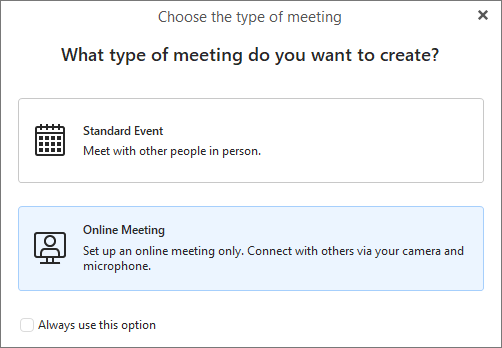
There will now be a pop-up asking you to choose which type of meeting you want to create. If you would like to create an online meeting with one of the supported providers (Zoom, MS Teams, Google Meet, Webex by Cisco, IceWarp video conferences, GoToMeeting, Meetn), then you would select “Online Meeting”.
If you don’t want to be asked this question every time you go to create an event in your calendar, simply click the “Always use this option” checkbox and select the meeting type you want to default to.
Default behavior can also be changed in Calendar Settings.
Then you will set up the subject, date, time and participants of the Online Meeting just as you would with a standard event. In the Online Meeting field, you can select the online meeting provider, based on the online meeting services you’ve added to eM Client.
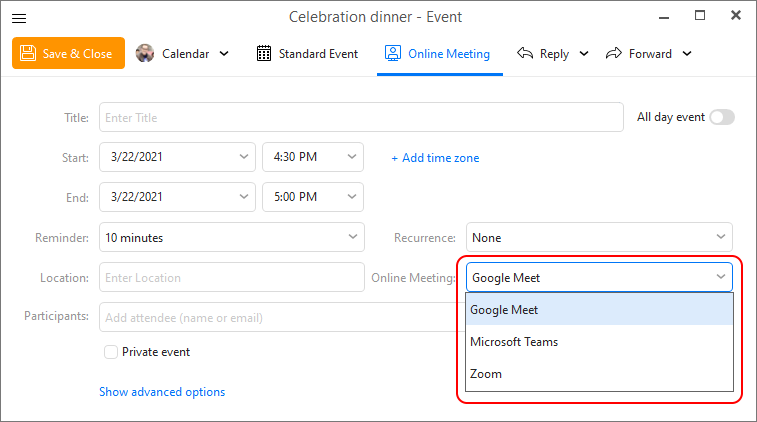
Once you’ve set up the details of the online meeting and clicked the Save & Close button, the event in your calendar will automatically update with a link to connect to your online meeting. All the event participants will receive this link in their meeting invite, or you can copy the link to share with others.
You can easily see which events in your calendar are Online Meetings by the camera icon  on the calendar entry.
To join an Online Meeting, simply click the Join Online Meeting button at the top of the event, or click on the meeting Link or login to your online meeting service and you should see the event scheduled there and ready to join.